
Blog · Xcode
How do I clear Xcode DerivedData?
Quit Xcode, then delete the contents of ~/Library/Developer/Xcode/DerivedData — in Finder, with one Terminal command, or with RefreshYourMac, which lists each project's folder and its size before you clean. Xcode rebuilds what it needs on the next build.
If you build apps on a Mac, DerivedData is usually the first folder worth clearing when the disk fills up. Xcode writes a folder there for every project and workspace you open, and never removes one — not when the project goes quiet, and not when you delete it. Here are three ways to clear it, and what to expect from each.
Before you start: quit Xcode
Clearing DerivedData while Xcode is open, and especially while it is building or indexing, can leave it confused about a target until you restart it. Quit Xcode first — whichever method you use.
1. From Xcode itself
Product › Clean Build Folder (⇧⌘K) clears the build products for the project in front of you. That fixes most stale-build problems, but it is narrow: it does not touch any other project’s folder, the shared module cache, or folders left by projects you no longer open. It rarely frees much space.
To see the whole thing, open Xcode › Settings › Locations. The Derived Data line shows the path, and the small arrow beside it opens the folder in Finder. Select everything inside and move it to the Trash — then empty the Trash, because nothing is freed until you do.
2. From Terminal
See what is there first, largest last:
du -sh ~/Library/Developer/Xcode/DerivedData/* | sort -hEach folder is a project name followed by a long random suffix. ModuleCache.noindex is shared by
every project. To delete the lot:
rm -rf ~/Library/Developer/Xcode/DerivedData/*This skips the Trash entirely, so it frees the space at once — and there is no undo. That is fine for DerivedData, which is generated output, but read the path twice before you press Return.
To clear a single project instead, delete just its folder.
What clearing it costs you
- The next build of each project is a full one. On a large project that is minutes rather than seconds.
- Indexing starts again, so jump-to-definition and code completion are slow until it finishes.
- The shared module cache is rebuilt the first time any project needs it.
Your source code, schemes, signing settings and simulators are all stored elsewhere and are not affected.
3. With RefreshYourMac
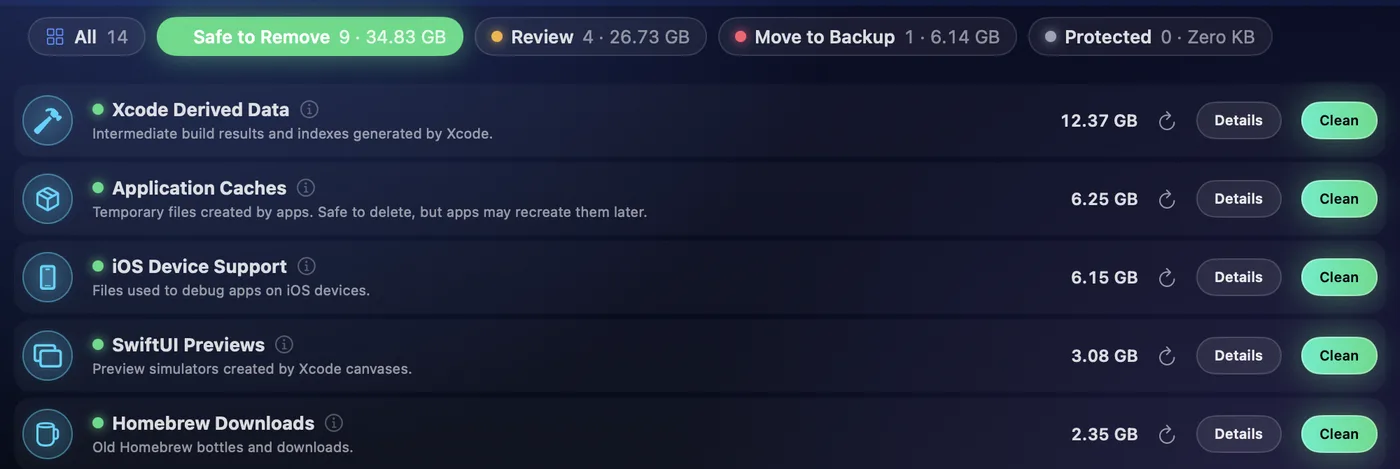
RefreshYourMac measures DerivedData as one of its 45 categories and rates it Safe to Remove: it regenerates on its own, and nothing of value is lost. Sort the list by size and on a Mac that builds apps it is often near the top, as above.
Details opens the list behind that number — every project’s folder, its size, and when it was last changed — so you can see whether the space belongs to the app you are working on today or to something you gave up on months ago.
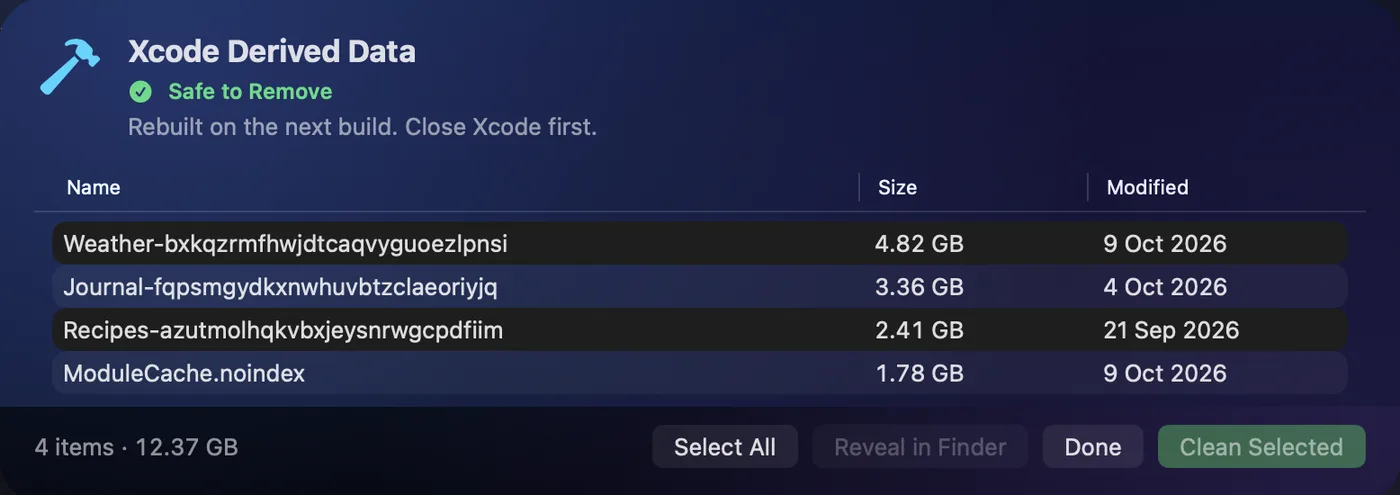
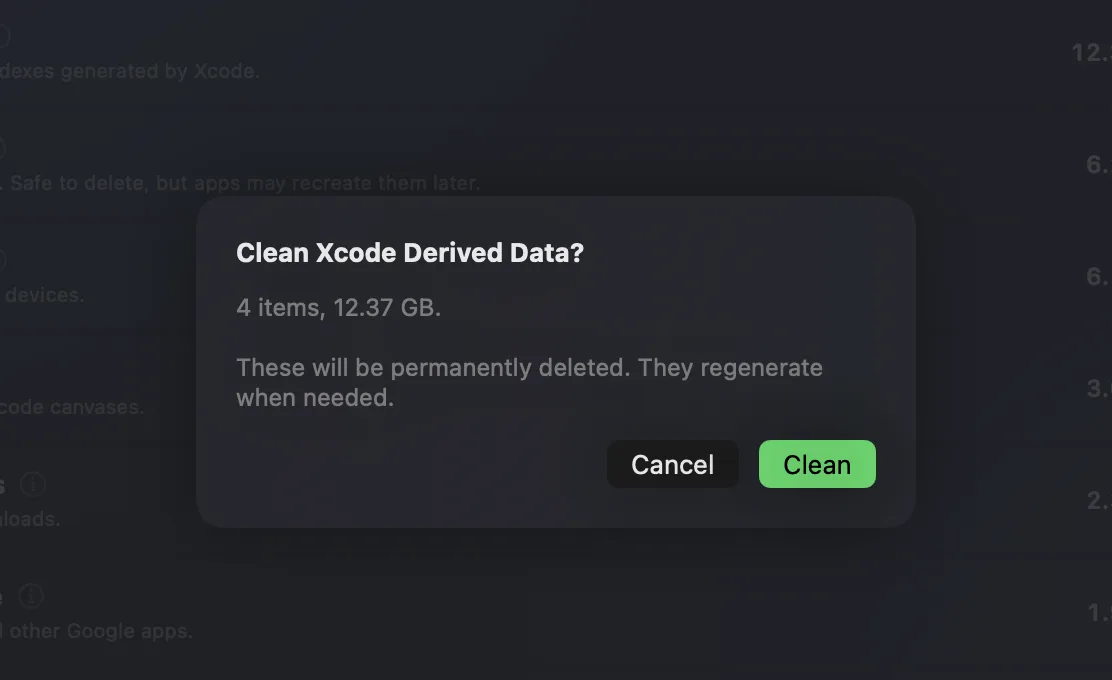
Pick the folders you want and press Clean Selected, or press Clean on the row to take the whole category. Either way, nothing goes without a confirmation that says how many items, how much space, and what happens to them:
Because it is Safe to Remove, DerivedData is also included in Clean All Safe and in the scheduled clean, which can run daily or whenever free space drops below a level you choose. A scheduled clean skips DerivedData while Xcode is open, and says so, rather than deleting a build tree in the middle of a build.
Keeping it from filling up again
DerivedData starts growing again the moment you build anything. That is normal, and it is why clearing it is maintenance rather than a one-off fix. Clearing it every few weeks, or letting a scheduled clean do it, keeps it from quietly reaching tens of gigabytes.
It is also rarely the only large thing Xcode leaves behind. iOS Device Support, SwiftUI Previews and old simulator runtimes often come close. More on those in removing old simulator runtimes, and on DerivedData itself in where DerivedData lives and whether it is safe to delete.