
Blog
How to Review Mac Cleanup Results Before Deleting
A cleanup scan is a decision ledger, not a delete command. If you’re figuring out how to review Mac cleanup results, don’t assume the largest number on screen is the best place to start. Familiar files can sit beside technical labels, and a cache that looks disposable may save time or data when you use an app again.

It makes sense to pause before deleting. First, understand what a result represents and what you might give up. This guide explains how to inspect unfamiliar categories, weigh potential space savings against the cost of re-downloading or rebuilding files, and decide what to keep or remove.
Visible consequences can help you make that decision. RefreshYourMac scans up to 45 categories and shows the potential re-download or rebuild impact of cleaning actions. Review those details at your own pace, then choose what to remove.
Key Takeaways
- Learn how to review Mac cleanup results by checking each finding’s name, location, size, and stated removal impact.
- Set a storage goal before scanning so you can judge whether freeing space is useful for your needs.
- Choose to keep, inspect further, or consider removing an item based on its purpose and potential cost to replace or rebuild.
- Pause on results you can’t identify or evaluate. A large file size alone isn’t a reason to delete it.
- Use RefreshYourMac’s findings across up to 45 categories to assess cleanup actions, then choose what to remove manually.
How to Review Mac Cleanup Results Before You Remove Anything
A large cleanup result can look like an obvious opportunity, but its size doesn’t mean every item should be removed. A scan report is a set of findings to inspect, not a command to clear everything listed. The goal is to understand what each item is, how much space it could free, and what might change if you remove it.
Keep this distinction in mind: A scan can identify data that may be removable; only your approval makes it data selected for deletion. A category label or a high storage estimate is a reason to look closer, not automatic permission to act.
If you’re learning how to review Mac cleanup results, start with the purpose behind the cleanup. You might need room for a particular file or application, or simply want to understand what is using storage. A specific goal helps you judge findings by their usefulness instead of treating the total scan result as a target.
- Identify the finding. Read its name and category, and check its location when shown.
- Estimate the value. Consider whether the space it could free helps with your actual storage goal.
- Consider the trade-off. Check whether removal could mean re-downloading, rebuilding, or losing convenient local data.
What a Mac cleanup scan result tells you
A scan identifies candidate items and estimates their storage footprint. The category can offer a clue about what the data relates to, but it can’t tell you whether you rely on it. Files grouped under a broad or technical label may have different uses. Treat the label as a starting point, then inspect any available details before deciding.
An operating system manages resources such as file storage; Operating System Fundamentals provides broader context for that role. A cleanup finding, however, points to a specific candidate on your Mac. Its size alone doesn’t show whether removing it will improve your day-to-day use.
Why review results before cleanup
Reviewing results helps you avoid removing data that would be more convenient to keep. Depending on the finding, removal may mean downloading content again, rebuilding data, or losing a local copy you use. Those costs may outweigh the space gained, especially if you don’t need that space for a clear purpose.
A storage goal isn’t a blanket instruction to remove everything detected. You can keep an item, inspect it further, or consider removing it. If the purpose or consequence isn’t clear, pause. Leaving an uncertain finding untouched is a valid decision.
How to Interpret Each Mac Cleanup Finding and Its Impact
A scan total is useful only when you understand what contributes to it. Consider each finding in terms of its identity, location, size, and possible consequence. Those details help distinguish data you can comfortably recreate from files that support an app or workflow you rely on. If more detail is available, open it before selecting an action.
Read the finding before judging its size
Start with the category and finding name, then check the location and any description. A label can group similar data, but it doesn’t prove that every item in the group is disposable. The location may help connect a result to an app or task. If the name remains unclear, treat that uncertainty as a reason to investigate, not as evidence that removal is useful.
Size tells you the potential storage recovered, not the value of the item. A hypothetical 3 GB finding may look more appealing than several small ones, but the total doesn’t tell you whether the data is convenient, regularly used, or difficult to recreate. Compare the details before ranking findings by size.
- Name: What kind of item does the finding identify?
- Location: Which app, task, or part of the Mac does it appear connected to?
- Size: How much space might removal recover?
- Consequence: Does the scan state that removal may require a re-download or rebuild?
Estimate the cost of removing a finding
Next, weigh possible storage recovery against the work that may follow. If an app can recreate data, that doesn’t make the data useless. Keeping it may save time or repeat setup. The balance depends on which apps you use, how your workflow relies on local data, and how much delay you’re willing to accept if the item must be downloaded or rebuilt.
Cleanup impact is the practical work that may follow removal, including any re-download or rebuild you’ll need. This is separate from the space figure. One estimates storage regained; the other helps you consider time and effort.
For example, imagine a finding offers several gigabytes of space but may require a lengthy rebuild. If you need that space now and can comfortably repeat the process, removal may suit your goal. If the data supports work you’re doing today, keeping it could be more useful. Neither decision is right for everyone.
When a scan states the re-download or rebuild impact, use it alongside the finding details rather than treating it as a guarantee of how long the task will take. RefreshYourMac’s cleanup findings show potential re-download or rebuild impact so you can compare the trade-off before choosing an action. If the consequence or purpose still isn’t clear, leave the item unselected and review it later.
Keep or Remove Mac Cleanup Results: A Practical Decision Framework
A useful decision depends on more than a file’s size. Consider four points together: what the finding is for, how important it is to you, how much space it may recover, and what the scan says could happen after removal. This framework keeps the choice tied to your needs rather than a general rule about which kinds of files are safe to delete.
Use the table as a starting point. Once you understand a finding’s purpose and likely impact, you can decide whether to keep it, inspect it further, or consider removing it.
| Choice | Purpose and personal importance | Potential space and removal impact |
|---|---|---|
| Keep | You recognize the item as useful, expect to access it locally, or can’t tell what it supports. | The space isn’t needed for your current goal, or the stated re-download or rebuild would be inconvenient. |
| Inspect further | The name or purpose is unclear, or you’re unsure whether it matters to an app or workflow. | The potential space looks useful, but the removal consequence needs more consideration. |
| Consider removing | You understand the item’s purpose and don’t need to keep it available locally. | The space supports your current goal, and you accept the stated re-download or rebuild impact. |
When it makes sense to keep a result
Keep a finding if you recognize it as useful or expect to access it locally. That may matter if the data supports work in progress or saves you from repeating a task. Keep it, too, if you can’t explain what it does or what removal may change. Uncertainty is a sound reason to pause, not a prompt to guess.
Keeping an item is a valid result of a cleanup review. A scan helps you see what is present; it doesn’t require you to remove anything. If a potential space saving doesn’t serve your current goal, preserving the data may be the more practical choice.
When to inspect further or consider removal
Inspect further when you see a possible space benefit but lack enough context to judge the item. Look for more detail about its purpose and any stated removal consequence. Don’t let a large size settle the question on its own. A finding that appears worthwhile to remove may still be worth keeping if it supports something you use.
Consider removal when you understand what the item is, don’t need it for your work or local access, and find the potential space useful. Then weigh the stated impact against your willingness to download or rebuild data. As you learn how to review Mac cleanup results, remember that no category is always disposable or always essential. Your use of the item determines the choice.
A Step-by-Step Way to Review Mac Cleanup Results
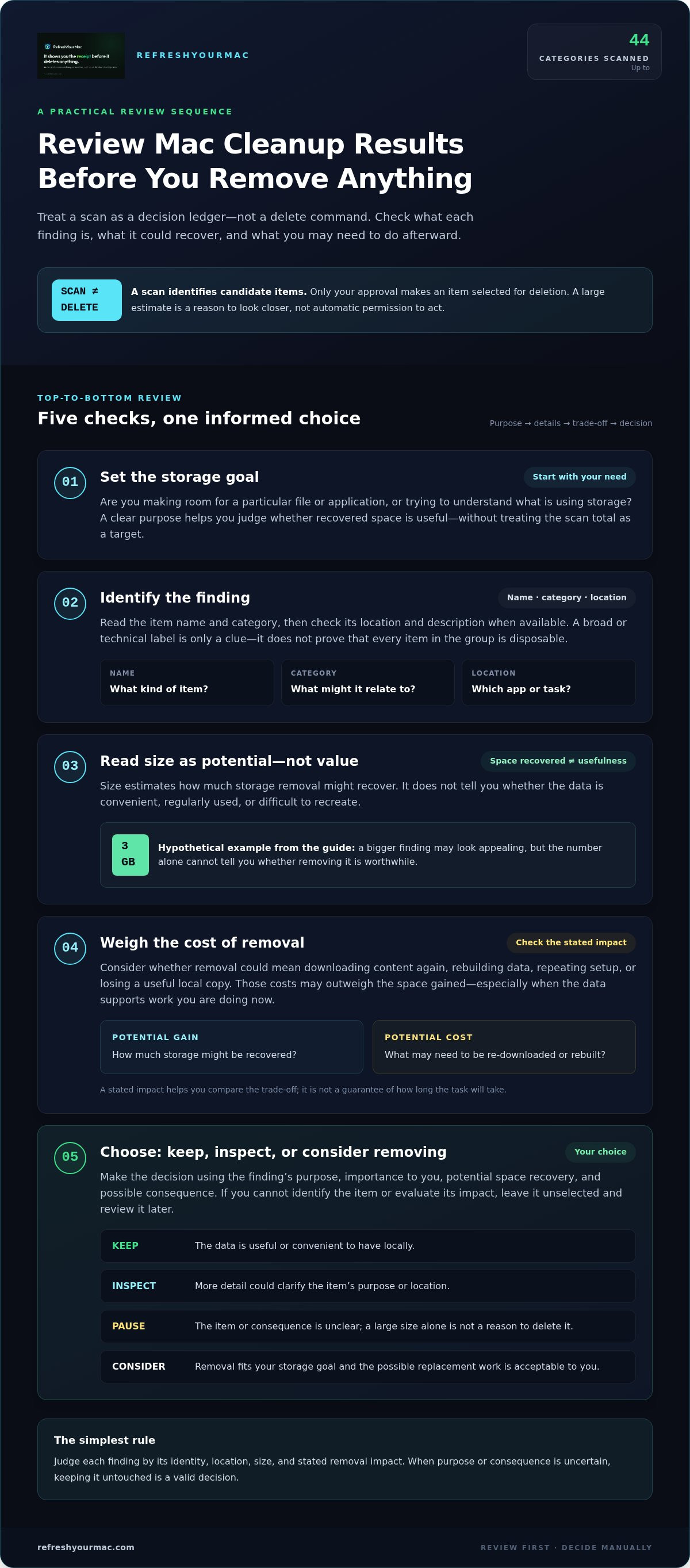
A steady process keeps the scan separate from the decision to delete. Set a goal, inspect what the scan finds, and select only the items you understand and want to remove. If a result remains unclear, leave it untouched. You can continue reviewing other findings without approving that one.
- Define your storage goal. Decide what you need space for, such as making room for a download or keeping enough room for ongoing work. A clear goal helps you judge whether a finding’s potential space benefit matters. Without one, it’s easy to focus on the scan’s total instead of what would actually help.
- Run a scan. Let the cleanup tool identify its findings before taking action. Treat the result as an inventory to review, not a set of items already approved for removal. Focus first on understanding what the scan found.
- Inspect each finding. Start with one item. Read its name, location, size, and any available description or removal-impact details. Ask whether you recognize what it supports and whether you rely on it. If you can’t identify or evaluate it, pause and leave it unselected.
- Weigh the impact. Compare the potential space with what removal could mean for your use of the Mac. Consider whether you may need to download or rebuild the data, and whether that work would be acceptable. A possible space gain is useful only if it serves your goal without an unwanted trade-off.
- Choose, then check. Select only the findings you’ve decided to remove. Review the selected items before proceeding, and follow any confirmation or completion messages the app presents. After cleanup, check available storage again and compare the result with your original goal.
Review one finding at a time
For each result, make a simple note: purpose understood or unclear, impact acceptable or uncertain, keep or consider removing. This pause prevents a familiar category label from standing in for an actual decision. You can move on to another finding while leaving uncertain items alone. Reviewing one item doesn’t approve the rest of the scan.
Make the cleanup choice and check the outcome
Before removal, look over what you selected. A scan may show more findings than you intend to delete, so don’t assume the full result is included in your choice. Confirm only the items you mean to remove. Once the action finishes, compare available storage with your goal. The result may be enough; you don’t need to keep cleaning just because other findings remain.
Inspect, understand, decide, then remove. That order preserves your oversight at each point. To put this review process into practice, scan with RefreshYourMac and inspect the findings before choosing what to remove.
Review Results With RefreshYourMac Before Choosing What to Remove
RefreshYourMac puts findings in front of you before cleanup. It scans up to 45 categories, giving you results to inspect rather than asking you to treat one large total as a deletion decision. The scan is free, so you can review what it finds before deciding what, if anything, to clean.
This is useful when category labels aren’t familiar or when an item might be convenient to keep. Read the available details and consider whether each finding serves your storage goal. A result can be worth keeping even if it appears removable. The decision depends on what the item means for your Mac and how you use it.
Use scan details to make an informed choice
RefreshYourMac shows what each cleaning action could mean in re-downloads or rebuilds. That context helps you compare possible storage recovery with the time or effort that may follow. Keep a finding if you rely on it, inspect it further if its purpose is unclear, or consider removing it when the space matters and the potential impact is acceptable.
RefreshYourMac supports macOS 15 and later. Its safety levels are designed to help prevent removal of important data, but your review remains central. Read the findings and their stated impact before choosing an action. A safety level can inform your decision; it doesn’t replace your understanding of what you want to keep.
Choose manual review or scheduled cleanup
If you prefer to check each result yourself, delete items manually after reviewing them. This ties each removal to a choice you’ve made. You can leave uncertain findings untouched and select only the items you understand and want to remove.
Daily scheduled cleanup is another option if you choose automation. It’s optional, not a required next step after scanning. Review your preferences before using a schedule, and choose an approach that matches how much oversight you want. Automation should follow your cleanup decisions, not turn an unfamiliar scan result into automatic approval.
To review a RefreshYourMac scan, look through the findings and weigh their potential impact. Then choose whether to keep, inspect further, or remove each item. That order lets the scan inform your decision while leaving the final choice with you.
Make Your Next Cleanup a Deliberate Choice
The next time your Mac feels short on space, decide what you need before you act. A clear target can keep cleanup focused: make room for a particular task, then stop once you’ve made a considered choice. You don’t need to remove every item a scan identifies to make progress.
That’s the practical value of knowing how to review Mac cleanup results. Understand what a finding means, decide whether its potential benefit fits your needs, and leave anything uncertain alone. A pause isn’t a missed opportunity. It’s part of keeping control over your files.
When you’re ready, scan with RefreshYourMac and review the findings before choosing what to remove. Take your time and select only what makes sense for your Mac.
Frequently Asked Questions
Can I undo a Mac cleanup after deleting files?
Sometimes, but recovery depends on how the cleanup removed the files. If they went to the Trash, you may be able to restore them before emptying it. If they were permanently deleted, recovery may depend on whether you have a backup or another copy. Check the Trash and your backup first. If the missing files matter, avoid writing new data to the Mac until you’ve considered recovery options.
Why does a Mac cleanup scan show more space than macOS says is available?
A cleanup scan may estimate space that could be recovered, while macOS reports storage currently available for use. Those figures measure different things. Available space can also change as files are added, removed, or managed by the system. Compare the scan’s selected findings with the Mac’s storage reading after cleanup, rather than expecting the full scan estimate to appear as immediately available space.
Should I delete duplicate files shown in a Mac cleanup scan?
Only after checking that the files are genuinely duplicates and deciding which copy, if any, you need. Similar names don’t prove identical contents. Compare their locations, sizes, and modified dates, then open the files if practical. Two copies may be intentional, such as an original and an edited version. If you can’t tell which copy is current or used by an app, keep both until you can verify.
Is it safe to remove old iPhone or iPad backups from a Mac?
It can be reasonable if you’re sure you no longer need that backup and have another suitable way to restore the device. An older backup may be the only copy of data from before a reset, device change, or data loss. Check which device and backup date the finding refers to. If you’re unsure, preserve it until you’ve confirmed you can restore what you need from another source.
Can a Mac cleanup scan include files stored in iCloud Drive?
It depends on the scan’s coverage and whether iCloud Drive files are stored locally on your Mac. A file visible in Finder may be downloaded, cloud-managed, or represented differently in local storage. Before removing an iCloud Drive item, check its sync status and consider whether deletion could affect access on other devices. Don’t assume a cleanup finding refers only to a disposable local copy.
Does deleting cleanup results make a Mac run faster?
Not necessarily. Removing files mainly changes storage use; it doesn’t automatically make apps or the system run faster. If the Mac is low on available space, freeing some may help with tasks that need room to work, but performance has other possible causes too. After cleanup, check whether the specific problem you were trying to address has changed. Avoid deleting unfamiliar files just to pursue a general speed improvement.
How often should I review Mac cleanup results?
There’s no fixed schedule that suits every Mac. Review findings when storage is becoming tight, before a task that needs extra room, or when you want to understand a new scan result. Learning how to review Mac cleanup results can help you make those checks purposeful instead of routine deletion sessions. If your storage needs are stable, wait until there’s a clear reason to scan and decide at your own pace.