
Blog
What Does a Mac Cleaner Delete? Files, Trade-Offs, and Checks
What does Mac cleaner delete, and what might you need to rebuild afterward? A scan can list caches, logs, browser data, app leftovers, or possible duplicates. But a label alone doesn’t tell you whether an item is safe to remove. Some files return as you use your Mac. Others may contain settings or data you want to keep.

If you want more storage without disrupting your usual work, look beyond the space a cleanup might free. Consider what you would need to download, rebuild, or restore if each item were removed. That makes it easier to weigh a temporary cache against a personal file.
This article explains common cleanup categories, what may change after removal, and which items deserve a closer look. RefreshYourMac’s free scan identifies files across up to 45 categories and shows the re-download or rebuild cost of cleanup actions. You can review the results, choose what to remove, and keep control of the final decision.
Key Takeaways
- What does Mac cleaner delete depends on the tool and the items you choose. Treat scan labels as a starting point, not proof that a file is disposable.
- Compare the storage benefit with what may happen next, such as an app recreating or downloading data.
- Check file names, locations, sizes, and app associations before approving unfamiliar items.
- Review categories individually. Leave personal or unclear files unchecked until you understand their purpose.
- RefreshYourMac’s free scan covers up to 45 categories and shows re-download or rebuild costs to help you weigh cleanup choices.
What Does a Mac Cleaner Delete? Start With the File, Not the Label
A Mac cleaner scans selected areas of your Mac and identifies files that may be removable. A scan helps you review storage, but it is not the same as deleting files. Depending on the app and its settings, you may need to select items and approve a cleanup. Some tools can automate parts of the process, so review those settings before you run a cleanup.
A Mac cleaner identifies files for possible removal. The app’s settings and your choices determine whether cleanup happens.
That distinction matters because “junk” is a broad label, not proof that every listed file is useless. A file might be temporary, or it might contain information an app uses to restore a session or retain a preference. The Apple File System (APFS) organizes data on many Macs, but a file’s location alone does not tell you whether it has personal value. Review each item in context.
What cleanup labels usually mean
Labels such as “cache,” “logs,” or “application junk” group files by type or likely purpose. A cache may contain data an app can recreate. Logs record activity and may help with troubleshooting. App-created files can also remain after you stop using an application. Since one label can cover files with different contents and uses, open the category and inspect the file type and location before deciding.
Names can be vague. A file path or app association may show which program created an item and where it is stored. If the scan does not provide enough detail to identify a file, leave it unchecked until you understand what it is.
Why two Mac cleaners may show different results
Cleaners can differ in scan scope, permissions, and settings. One may inspect selected locations, while another may request access to additional areas. Categories and rules for flagging files can vary too. A scan is a report of what that app found with its current settings, not a universal inventory of every removable file on every Mac.
Cleanup actions also differ. Duplicate-finding tools compare files to identify possible copies. App removal targets an application and may include associated files. Temporary-file cleanup focuses on items created during normal system or app use. Check which action is selected and what it covers before approving it.
To answer what does Mac cleaner delete, look beyond the category title. Check the file type, location, and associated app, then confirm whether the scan merely found the item or selected it for removal. That review keeps identification separate from permission.
Which Mac Files May Be Removed, and What Can Happen Next?
Cleanup tools can identify several kinds of files, but no single list applies to every Mac cleaner. A category may contain items with different uses, and removing them can have different effects. The consequences depend on the specific file and the app that created or uses it. File type is a useful clue, not a complete safety check.
Caches, logs, and temporary files
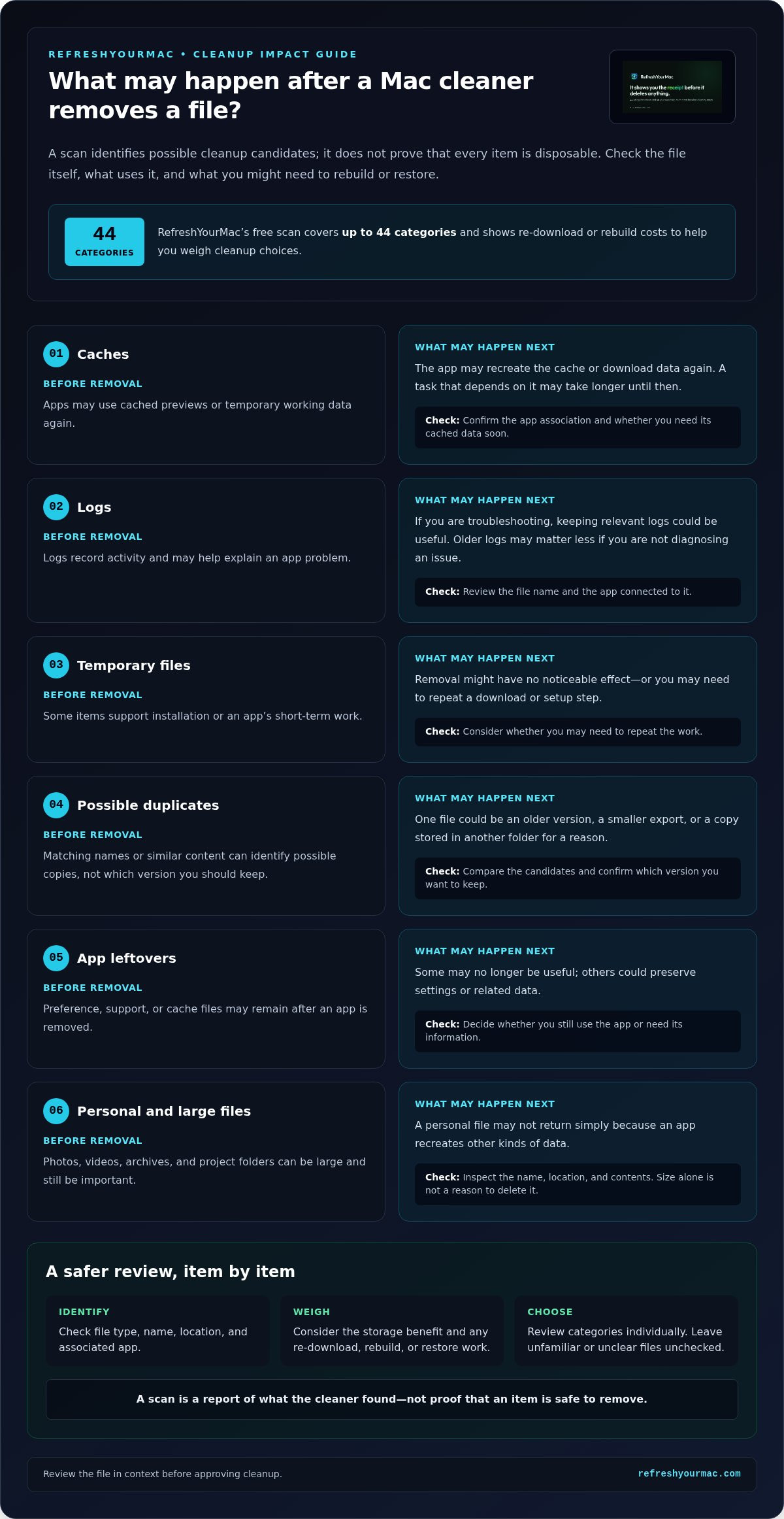
Apps create caches to store data they may need again, such as previews or temporary working information. If you remove a cache, an app may recreate it or download some data again. Until then, a task that relies on the cached data may take longer. Some caches are easy to rebuild, but that doesn’t mean every item labeled “cache” is automatically safe to remove.
Logs record activity. They can use storage, but they may also help explain an app problem. If you’re troubleshooting, keeping relevant logs could be useful. If you’re not, an older log may matter less. Check the file name and app association in light of what you’re trying to do.
Other temporary items may support an installation or an app’s short-term work. Removing them might have no noticeable effect, or it might mean repeating a download or setup step. Apple also explains how to review storage and remove files you no longer need in Free up storage space on your Mac. A cleaner can help identify possible candidates, but you still need to decide what each item means for you.
Duplicates, app leftovers, and personal files
A duplicate finder may flag files with matching names or similar content. Compare the candidates before removing either copy. One may be an older version, a smaller export, or a copy stored in a different folder for a reason. Confirm which version you want to keep and that it is available where you expect.
App leftovers can include preference, support, or cache files that remain after an application is removed. Some may no longer be useful, while others could preserve settings or related data. Consider whether you still use the app or need its information before selecting associated files for removal.
Large doesn’t mean disposable. A video, photo library, archive, or project folder may be one of the biggest items in a scan and still be important. Check its name, location, and contents. If you don’t recognize it, don’t treat its size or a “large file” label as permission to delete it.
For a clearer view of possible consequences, inspect cleanup findings with RefreshYourMac. Its scan covers up to 45 categories and shows re-download or rebuild costs, helping you consider the trade-off before choosing what to remove.
Does Deleting a Mac Cleaner’s Findings Free Space Without a Cost?
Removing a file can make room on a Mac, but the benefit may be temporary or come with a practical trade-off. A cache or other app-created file may return as you work. A personal document may not. Ask not only how much space an item occupies, but what you would need to do if it were gone.
The answer to what does Mac cleaner delete matters because different file types have different recovery paths. The table outlines possible outcomes, not guarantees. A category label alone can’t establish whether a file is expendable.
| File type | Possible benefit | Possible consequence |
|---|---|---|
| Cache or temporary data | Releases space used by app-created files | An app may recreate or download data; a task may take longer meanwhile |
| Developer build data | Removes generated files from development work | A project may need to rebuild data, taking time and using system resources |
| Downloaded files | Clears local copies that may no longer be needed | You may need to download them again, which takes time and network data |
| Personal documents or media | Frees space if you truly no longer need the item | Recovery may depend on Trash status, backups, and later disk activity |
| Duplicate candidates | Reclaims space if an extra copy is confirmed | Removing the wrong version may leave you without the copy you intended to keep |
Files that may be rebuilt or downloaded again
Some caches and temporary files can be generated again by the app that uses them. Developer build data may also be recreated when a project is built. That can restore the files, but may take time and use system resources. If an app needs to fetch data again, the process may also use network data. Outcomes depend on the specific file and workflow, so don’t assume every item in a category behaves alike. For example, before removing Xcode build data, consider whether you’ll need to rebuild an active project or restore related development files.
Space reclaimed from these items may not stay free. An app can recreate or download data during normal use. Cleanup can still be useful when you understand the trade-off, but it does not guarantee lasting free storage or make a Mac faster.
Files that deserve extra review
Personal documents, photos, videos, and project files need individual attention. A large file is not automatically unnecessary. Compare duplicate candidates too: check contents, versions, and locations before choosing which copy, if any, to remove.
Recovery is different from rebuilding. A file in Trash may still be restorable, while an item permanently removed may depend on an existing backup. Recovery can also be affected by what happens on the Mac after deletion. Before approving removal, identify the file, confirm whether you have another copy, and consider whether you can replace it if needed. If you can’t tell, leave it out of the cleanup.
How to Check a Mac Cleaner’s Scan Before Removing Anything
A scan is a chance to review, not a commitment to delete. Work through the results and keep the final choice separate from the act of inspecting them. The question “what does Mac cleaner delete” is best answered by checking individual entries, not relying on a total storage estimate or broad category name.
- Scan. Let the tool finish and note which areas it checked. Results reflect the cleaner’s scope and current settings, not necessarily every file on your Mac.
- Open categories. Expand each category instead of approving a group based on its title. Look for individual items and information about their purpose.
- Inspect items. Check the file name, location, size, and associated app when those details are available. A file shown with an app may be easier to identify than one labeled only “other” or “junk.”
- Assess impact. Ask whether you recognize the item, still use the app, and could recreate or download the file again. Review any stated rebuild or re-download impact before proceeding.
- Choose. Select only items you understand and want removed. Leave unclear or personally valuable files unchecked, then review the selected list once more before confirming.
Questions to ask about each scan result
Pause on unfamiliar entries. What is the file? Which app uses it? Can that app recreate it, or would you need to download it again? If the scan explains a rebuild or re-download cost, include the time and network use in your decision. A large size may make an item worth investigating, but it doesn’t make the file expendable. If you can’t identify it or it may be personally valuable, leave it untouched and revisit it later.
Use the same review each time: identify the file, connect it to an app or task, consider what replacing it would involve, and only then decide whether to remove it.
Manual cleanup versus scheduled cleanup
Manual selection gives you a chance to examine each cleanup action before it runs. It suits items you want to judge individually, especially when the scan includes files you don’t recognize. Scheduled cleanup can save steps, but use settings you understand. Review the categories and safety level it applies, and confirm that the schedule won’t remove files you intend to keep.
RefreshYourMac offers a free scan across up to 45 categories and shows the re-download or rebuild cost of cleanup actions. Run a scan and review cleanup impacts before deciding what to remove.
How RefreshYourMac Shows What a Cleanup May Remove
Once you understand that file categories can have different effects, inspect the scan before choosing what to remove. RefreshYourMac is designed to make that review more informed. Its free scan identifies removable files across up to 45 categories. Scanning gives you results to consider; it does not, by itself, mean those files have been deleted.
The scan also shows the re-download or rebuild cost of cleanup actions. That context helps you weigh possible storage gains against the time or effort needed to restore data. A file that can be rebuilt may still be inconvenient to lose, and an unfamiliar result still deserves a closer look. The aim is not to approve every finding, but to understand what a cleanup may involve before choosing.
What the RefreshYourMac scan lets users inspect
Use the scan as an inventory for review. Explore the categories and consider the listed files and their consequences before deciding what to remove. This keeps the question “what does Mac cleaner delete” tied to specific results rather than assumptions about a label. RefreshYourMac is available for macOS 15 and later, so check your Mac’s macOS version against that requirement before using it.
Choose a level of control that suits your cleanup
If you prefer to decide item by item, manual deletion lets you review findings and choose what to remove. You can leave items untouched if you’re unsure. The scan’s rebuild and re-download information can help you make individual decisions without treating every category as an all-or-nothing choice.
Scheduled daily cleanups are another option, not a required setting. Before using a schedule, review its settings and safety level so you understand what it may remove automatically. RefreshYourMac’s safety levels are designed to help prevent the removal of important data, but they don’t replace your judgment. Choose a level that fits your comfort with automation, and use manual selection when you want closer oversight.
When comparing cleanup tools, focus on whether their scan results show individual items and explain the likely consequences of removal. Those details make it easier to decide what belongs in a cleanup.
A cleaner’s scan is most useful when it gives you time to decide. RefreshYourMac offers a free scan, with use of the app available for €19.99 per year or a one-time purchase of €39.99.
Make Your Next Cleanup a Deliberate Choice
A useful cleanup habit starts with a boundary: decide which kinds of items you’re comfortable handling routinely and which you want to review every time. That boundary can change as your work changes. A folder that once seemed disposable may hold an active project later. Reassess before applying old choices to a new scan.
That’s the practical answer to what does Mac cleaner delete: it depends on the files identified and the cleanup actions you approve. You don’t need to remove every candidate to make a considered decision. Leave uncertain items alone and choose only what fits your needs.
When you’re ready to inspect possible cleanup items before deciding, run RefreshYourMac’s free scan. Review the listed consequences and choose the actions that make sense for your Mac.
Frequently Asked Questions
Does a Mac cleaner delete personal files?
A Mac cleaner may list personal files if it includes tools for finding large items or duplicate candidates, but those files aren’t automatically disposable. A folder of old exports might be safe to remove, while a similarly named folder could contain the only copy of active work. Check the contents and confirm another copy exists before approving deletion. If you can’t identify a file, leave it alone.
Can a Mac cleaner delete cache files safely?
Sometimes, but “cache” doesn’t guarantee that every item is safe for your situation. An app may rebuild a removed cache, but it could take longer to load or need to fetch data again. Before clearing one, consider whether you’re troubleshooting that app or relying on a current session. If the cleaner gives little detail about the cache, choose a smaller cleanup or leave it in place.
What happens if I delete an app's support files?
Deleting support files can remove settings, saved state, or other data an app uses, depending on the file. For example, removing a preference file may reset choices the next time you open the app. If the app is still installed, it may recreate some files, but that won’t necessarily restore your previous settings. Check which app the files belong to and whether you still use it before removing them.
Will deleting Mac cleaner files make my Mac faster?
Not necessarily. Removing files can free storage, but that alone doesn’t establish that an app or the whole Mac will run faster. If an app has to recreate deleted working data, its next launch or task could take longer. Treat cleanup as a storage decision, not a guaranteed performance fix. If a specific app feels slow, note when the delay occurs before changing files it may depend on.
Can I recover files after a Mac cleaner deletes them?
Recovery depends on how the cleaner removes files and what happens afterward. First, check the Trash if the app sends items there. If they were permanently removed, a backup may be the best route to restore them. Avoid saving or downloading more files until you understand your recovery options, since later disk activity can make recovery harder. A scan or deletion history may also help identify the exact item.
Does scanning a Mac with a cleaner delete anything?
A scan usually identifies possible cleanup items, but scanning and deleting are separate actions in many tools. The exact behavior depends on the app and its settings. Before starting, look for options such as automatic cleanup or scheduled removal. After the scan, review the selected items and pause at the confirmation step. If you only want to inspect storage, don’t approve a cleanup action.
Why can cleanup files return after I remove them?
Some files are generated as macOS or an app works. For instance, an app may create fresh temporary data during another session or download local data again when needed. A returning file doesn’t necessarily mean the earlier cleanup failed. It may be part of normal use. If you keep seeing it, consider whether repeatedly removing it interrupts your workflow or frees enough space to be useful.