Blog · New Mac
Moving to the new touchscreen MacBook Pro? Clean up before you migrate
Before you run Migration Assistant, make a Time Machine backup, then clear what your old Mac can rebuild or no longer needs — caches, build data, leftovers from removed apps, old installers — so the new MacBook Pro starts with your files rather than years of clutter. RefreshYourMac measures all of it first, and from version 1.3.3 it works by touch on the new MacBook Pro.
Apple announced the first MacBook Pro with a touchscreen on 28 October 2026: an OLED display with touch built into the panel, in 14-inch and 16-inch sizes. If you have ordered one, the next step is the same as for any new Mac: moving your old one across. That step decides how much of the new Mac’s storage is yours from the first day.
Migration Assistant copies everything, clutter included
Migration Assistant is the easiest way to move to a new Mac, and it is thorough. It brings your user account across whole: your files, your apps, and the Library folder behind them, where apps keep their settings, their data and a great deal of what they can rebuild. It does not ask which parts are worth having. Anything your old Mac has been carrying arrives on the new one:
- Caches and build data that apps and developer tools rebuild on their own. On a Mac used for development, Xcode’s DerivedData, simulator runtimes and package caches alone can run to tens of gigabytes.
- Data left by apps you removed. Dragging an app to the Trash leaves its data folders behind, and nothing ever deletes them.
- Downloads you only needed once: macOS installers, disk images, archives.
- Duplicates: the same photo or video saved twice, often at different sizes.
- Apps you no longer open.
Storage is the part of a new Mac you cannot add later, so it is worth not filling it with things you would delete anyway.
Before you migrate: three steps on the old Mac
1. Back up first
Make a full Time Machine backup of the old Mac before you clean anything. It is your undo for every step that follows, and Migration Assistant can restore from it if you prefer that to a direct transfer.
2. Clear what rebuilds itself
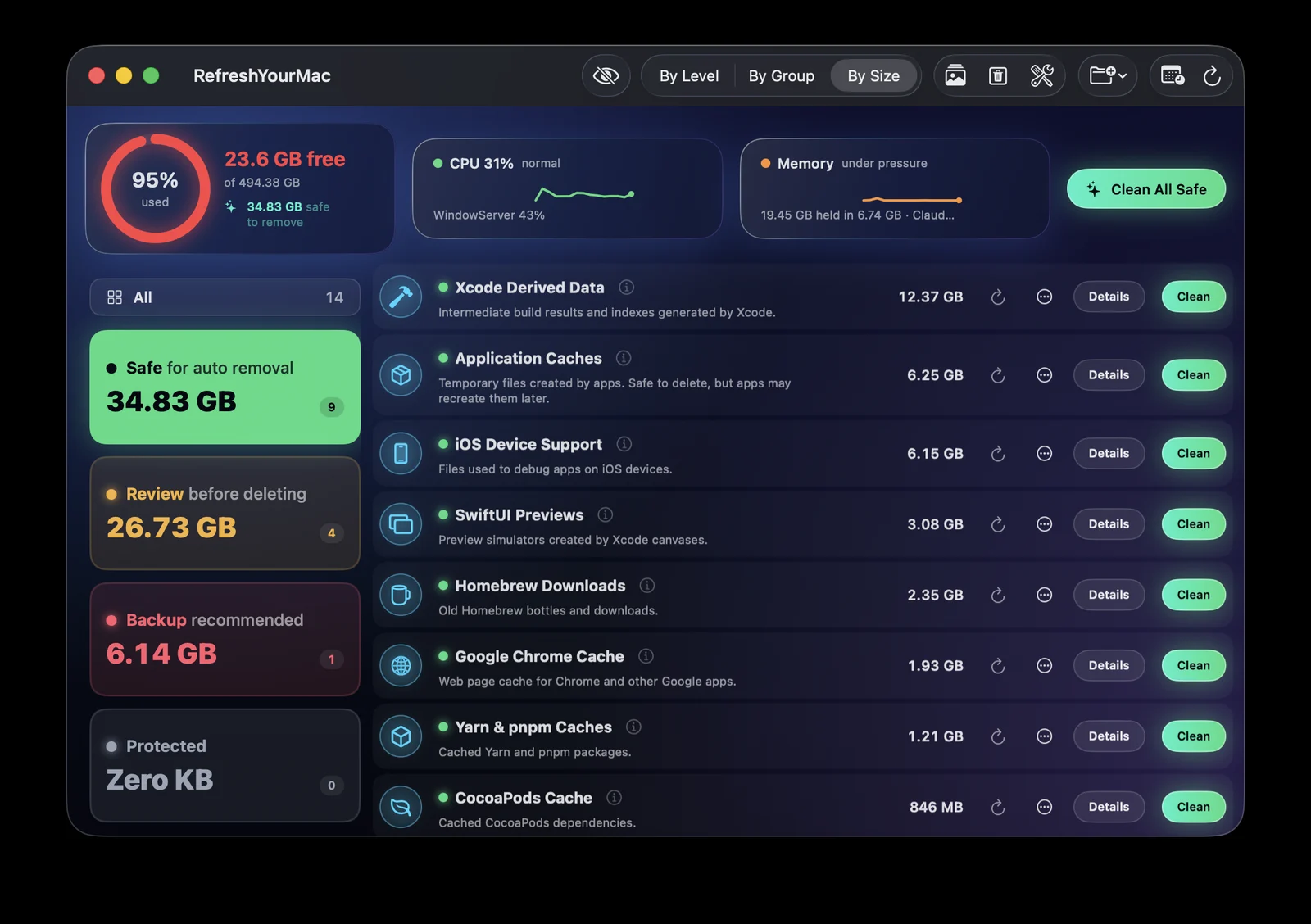
Caches, logs and build data are safe to delete: apps recreate what they need. Clearing them first means a smaller, faster transfer and a new Mac that starts clean. You can do this by hand folder by folder, or let a cleaner measure it first. In RefreshYourMac these sit in Safe for auto removal, and Clean All Safe clears them in one go, after a confirmation that says how much.
3. Decide about the rest
This is the part worth a few minutes, because none of it rebuilds:
- Apps you no longer use. RefreshYourMac’s Unused Applications row lists apps by the last day you opened one, counting only days you actually used the Mac.
- Data left by removed apps. Listed only once nothing has used it for eight days of use; it goes to the Trash, so you can put it back.
- Large files and duplicates in Downloads, Documents, Movies and Pictures. One copy of each duplicate is always kept.
- Things to keep, but not on the new Mac: old projects, a big video library, WhatsApp’s photos. Move to Backup copies them to another drive and then frees the space.
After you migrate: a quick check
Once the new Mac is set up, run a scan there too. Some things only appear after the move: an app re-downloading its caches, a macOS update waiting to install, an aerial wallpaper you tried on the first evening. It is also a good moment to see what the new Mac’s storage is going to fill up with.
RefreshYourMac on the touchscreen MacBook Pro
macOS turns a tap into a click, so most Mac apps simply work by touch. What a finger cannot do is right-click, hover or hold ⌘. From version 1.3.3, nothing in RefreshYourMac depends on those:
- A ⋯ button on every row, with what right-clicking used to offer, such as moving a category to another level.
- Room for a fingertip around the small icon buttons.
- Tick boxes in Details, so you can pick several items by tapping instead of ⌘-clicking.
The Mac App Store edition has the same changes from version 1.5.
Try it on the old Mac first
The yearly plan starts with a 7-day free trial, which shows how much space each safety level holds. That is enough to see what your old Mac would carry across before you decide what to move.
What to do next: see these numbers for your own Mac. Download Atzu Storage free, or get it on the Mac App Store.
What it costs to have an app do this
| Atzu Storage | CleanMyMac | MacKeeper | |
|---|---|---|---|
| Pay once | $24.99 | €119.95 on MacPaw’s store; $89.99 for CleanMyMac X on the Mac App Store | subscription only |
| Yearly | $14.99 a year, first 7 days free | $39.99/yr on the Mac App Store; €39.95/yr on MacPaw’s store | €71.40 for the first year, 1 Mac. Their page shows it against a €119.40 list price |
| Monthly | $1.99 a month | $9.99/mo | €10.95/mo |
| Account needed | No | Yes | Yes |
Both versions' yearly plans start with 7 days free. CleanMyMac and MacKeeper prices read from their own pages and the Mac App Store on 27 October 2026; the full comparison is at Atzu Storage vs CleanMyMac and MacKeeper.